
VEIKK VK1200 11.6 inch Drawing Tablet with Screen
4.2Editor score
8192 Pressure Levels
11.6 Inch Display
Two Battery-Free Pens
Finding a drawing tablet with a screen does not have to break the bank. Many artists and students need direct on-screen drawing capabilities but lack the budget for high-end models. Affordable options now offer impressive pressure sensitivity, color accuracy, and build quality that rival pricier competitors.
We evaluated ten popular budget-friendly pen displays based on screen size, resolution, pressure levels, and overall user experience. Our comparison focuses on value for money, ensuring you get the most features without overspending. Each product was selected for its ability to deliver a natural drawing experience at a competitive price point.
Every pick highlights specific strengths like color gamut, shortcut keys, or connectivity options to help you decide. While prices fluctuate frequently, these models consistently offer strong performance for digital art and note-taking. Always check current listings before purchasing to ensure you secure the best deal available today.
4.2Editor score

4.4Editor score

5.0Editor score
As an Amazon Associate we earn from qualifying purchases.
The following table provides a side-by-side comparison of all ten products evaluated in this guide. It highlights key specifications such as screen size, pressure sensitivity, and special features to help you quickly identify the model that best fits your artistic needs and budget constraints.


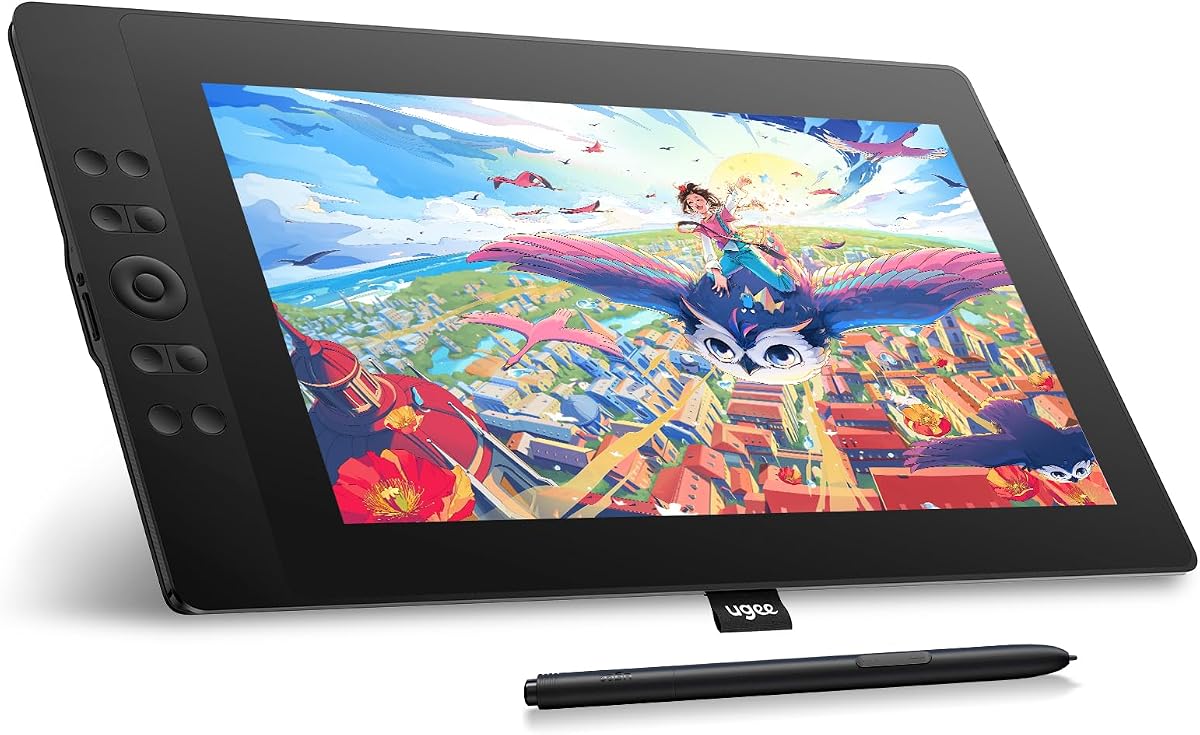


The XP-PEN Artist12 stands out as a top contender in the budget pen display market with a 4.4 rating. It delivers vivid colors and sharp details suitable for digital art and photo editing. The 11.6-inch screen provides ample space for sketching without taking up too much desk room.
We may earn a commission when you buy through this link, at no additional cost to you.
Its 8192 levels of pressure sensitivity allow for precise stroke control, mimicking traditional pencil strokes. The anti-reflective screen protector reduces glare effectively. Customizable shortcut keys and a touch bar enhance workflow efficiency across various creative software applications.
Connectivity requires both HDMI and USB ports which might need adapters on newer laptops. The lack of standalone battery operation limits portability compared to all-in-one tablets. However, for home studios these trade-offs are acceptable for the price.
Ideal for students and beginner artists seeking a reliable tool for online classes and drawing. The one-year warranty and lifetime technical support provide peace of mind. It balances performance and affordability exceptionally well for entry-level professionals.
The programmable shortcut keys and touch bar allow you to map frequent actions for faster editing without reaching for your keyboard.
The battery-free stylus with an eraser at the end offers a familiar pencil-like grip that feels comfortable during long sessions.
We may earn a commission when you buy through this link, at no additional cost to you.
The VEIKK VK1200 V2 offers a premium feel with its full-laminated screen at a competitive price point. This technology minimizes parallax ensuring your cursor matches the pen tip accurately. The anti-glare glass provides a natural paper-like texture for comfortable drawing.
We may earn a commission when you buy through this link, at no additional cost to you.
It supports single-cable USB-C connectivity simplifying setup on modern laptops. The included two pens and numerous replacement nibs ensure longevity without extra costs. Programmable shortcut keys help streamline tasks like zooming and switching tools quickly.
While color gamut is standard the resolution ensures clear images for general art. The metal body adds durability but might feel heavier than plastic alternatives. Ensure your laptop supports USB-C DP output for the single cable feature.
Perfect for students who need a portable and durable option for digital design. The compact design fits easily in backpacks for mobile work. It remains a top budget choice for those prioritizing build quality and ease of use.
Full-laminated technology fuses the glass and screen to eliminate the gap that causes cursor misalignment during detailed drawing.
Using a single USB-C cable reduces cable clutter and makes connecting to laptops significantly easier than multi-cable setups.
We may earn a commission when you buy through this link, at no additional cost to you.
The Artisul D16 stands out with a larger 15.6-inch screen offering more room for detailed illustration and design work. Its full-laminated screen improves accuracy by reducing the visual gap between pen and cursor. The refurbished status ensures quality at a lower cost.
We may earn a commission when you buy through this link, at no additional cost to you.
A unique quick dial allows fast adjustments to brush size without interrupting your workflow. Seven customizable hotkeys support complex software shortcuts effectively. The included adjustable stand ensures comfortable angles for both sitting and standing positions.
Color accuracy is strong with high Adobe RGB coverage suitable for print design. Larger size requires more desk space and careful power planning. Always verify refurbishment terms before purchase to ensure satisfaction with the device condition.
Ideal for professionals needing a larger workspace without high-end costs. It balances size and performance well for digital painting and editing. The dial control adds a unique touch rarely found in this price category for budget artists.
The physical dial and shortcut keys allow you to adjust brush sizes and scroll quickly without using mouse clicks.
An adjustable stand supports six angles to reduce strain during long drawing sessions for better posture.
We may earn a commission when you buy through this link, at no additional cost to you.
The GAOMON PD1161 offers extensive customization with eight programmable keys for various drawing shortcuts. Its vivid color performance enhances the visual quality of your artwork making it suitable for photo editing. The matte film reduces glare effectively for a natural feel.
We may earn a commission when you buy through this link, at no additional cost to you.
Tilt functionality adds depth to brush strokes simulating realistic painting techniques. The battery-free stylus ensures uninterrupted work without needing recharges between sessions. Compatibility with Mac and Windows allows broad use across different operating systems.
Power requirements may need an adapter for laptops with weak USB ports. Driver installation can be slightly more complex than competitors. Ensure you have sufficient USB ports available for connection before purchase.
A solid option for digital artists needing precise control and workflow efficiency. The eight keys allow mapping tools for frequent actions. It remains a reliable choice for those prioritizing keyboard shortcuts on their pen display.
Tilt functionality enables natural shading by angling the pen just like a real pencil or brush.
Eight press keys let you map commands like zooming and layer switching directly to the display for faster editing.
We may earn a commission when you buy through this link, at no additional cost to you.
The HUION Kamvas 13 Gen 3 features factory calibration ensuring excellent color accuracy for professional work. Dual dial buttons provide intuitive control over zoom and brush size without interrupting creativity. The single cable design simplifies setup and reduces desk clutter.
We may earn a commission when you buy through this link, at no additional cost to you.
Advanced PenTech 4.0 technology delivers smooth strokes with 16384 pressure levels for precise line width control. Canvas Glass 2.0 reduces glare while maintaining a natural drawing texture. The 99% sRGB coverage ensures vibrant and true-to-life visuals.
Higher cost compared to basic models may be a factor for beginners. The stand is sold separately or requires additional accessories for ergonomic use. Ensure your laptop supports USB-C DP output for full functionality.
Best for artists requiring consistent color reproduction and detailed control. Ideal for graphic designers and illustrators who prioritize accuracy. It is a robust tool for creating print-ready digital art efficiently.
Factory calibration ensures colors appear accurate out of the box which is critical for print design.
Two dials allow simultaneous control of zoom and brush size for a more fluid creative workflow.
We may earn a commission when you buy through this link, at no additional cost to you.
The UGEE UE16 boasts a wide 143% sRGB color gamut ensuring vibrant and vivid artwork reproduction. It supports multiple color spaces for different visual needs and design workflows. Full-laminated screen technology reduces parallax for accurate cursor positioning.
We may earn a commission when you buy through this link, at no additional cost to you.
16K level pressure sensitivity allows for rich and precise line strokes. A digital wheel provides quick transitions between preset functions for better efficiency. It supports Android devices making it versatile for mobile creative sessions.
Large size requires ample desk space and careful cable management. Cables are packed separately so verify contents before starting your setup. Ensure you have enough ports for optimal connection performance.
Ideal for illustrators needing high color fidelity and a spacious workspace. It supports Android connectivity for flexible work setups. A powerful choice for professionals seeking extensive color options without high costs.
The 143% sRGB gamut ensures rich and lifelike colors which are essential for accurate digital art and design.
Android support allows you to connect to phones or tablets for on-the-go creative sessions without a PC.
We may earn a commission when you buy through this link, at no additional cost to you.
The VEIKK VK1200 provides an affordable entry point into pen displays with solid performance for beginners. Its 11.6-inch screen offers enough space for sketching and note-taking tasks effectively. Tilt function adds depth to strokes for artistic expression.
We may earn a commission when you buy through this link, at no additional cost to you.
Two pens and twenty-eight nibs ensure longevity and convenience for daily use. The included artist glove keeps hands clean and prevents smudges during drawing. Lightweight design makes it easy to transport between classes or studios.
Color range is basic which might limit professional print design needs. Cable length may require extra connectors for some setups. Verify your ports match connection requirements before purchasing to avoid delays.
Perfect for students needing a reliable tool for online classes and drawing. It offers essential features without unnecessary cost. A practical choice for those starting their digital art journey with a low budget.
This model offers essential features like tilt and pressure sensitivity that help beginners learn digital drawing basics.
Two pens and replacement nibs ensure long-term use without needing immediate extra purchases.
We may earn a commission when you buy through this link, at no additional cost to you.
The RubensTab T11 Pro is a standalone tablet allowing creation anywhere without a computer. It features a 10.1-inch Full HD screen for vibrant and sharp artwork. Built-in battery supports up to five hours of continuous use for mobile sessions.
We may earn a commission when you buy through this link, at no additional cost to you.
Multi-touch functionality enables intuitive zooming and panning with gestures. Pre-installed apps help beginners start drawing immediately without extra software costs. Adjustable stand adds convenience for both desktop and travel use cases.
Smaller screen size limits detail for complex professional projects. It requires charging for operation unlike pen displays with constant power. Ensure you need standalone functionality before investing in this model.
Ideal for travelers and students needing portability and simplicity. It supports note-taking and creative work on the go. A unique option for those who prioritize independence from desktop computers.
No computer is needed for this device allowing you to sketch anywhere with a built-in battery.
Multi-touch support allows for intuitive gestures like zooming and rotating canvas for easier workflow.
We may earn a commission when you buy through this link, at no additional cost to you.
The VEIKK VK1200V2 offers upgraded pressure sensitivity with 16384 levels for smoother and more delicate lines. Full-laminated screen reduces parallax ensuring accurate cursor positioning for detailed work. It supports wide color gamut for vibrant visuals.
We may earn a commission when you buy through this link, at no additional cost to you.
Two styluses are included ensuring you always have a backup ready. Lightweight design makes it easy to carry for daily use and travel. Programmable hotkeys support custom workflows to improve efficiency during drawing sessions.
Driver stability may vary across different operating systems. Ensure your system meets minimum requirements for smooth performance. Always check current driver support before relying on it for daily projects.
Ideal for artists needing precise control without overspending on premium models. It offers a good balance of features and portability. A strong contender for those prioritizing pressure sensitivity in their budget tool.
16384 pressure levels allow for fine control over line width and texture essential for detailed digital painting.
Lightweight design makes it easy to carry between studios or classrooms without heavy bags.
We may earn a commission when you buy through this link, at no additional cost to you.
The XPPen Artist 12 Pro Lite delivers a compact 11.6-inch display with full-laminated technology to reduce parallax. Its red dial offers quick access to brush size control and other functions without menus. Tilt support enhances shading capabilities for natural drawing.
We may earn a commission when you buy through this link, at no additional cost to you.
3-in-1 cable simplifies connectivity making setup easier for most laptops. Eight shortcut keys allow customization to fit specific workflows. Compatible with Windows and ChromeOS for broad software support.
Limited extra features compared to higher-end models may restrict advanced workflows. Always verify port availability on your laptop before purchase. It remains reliable for standard digital art tasks.
Best for beginners needing a compact and reliable tool for drawing. It balances performance and simplicity effectively. A practical option for those who value portability and ease of setup.
The 11.6-inch form factor ensures the display fits easily on smaller desks without losing workspace.
A customizable red dial allows instant access to brush sizes and zoom functions for faster editing.
We may earn a commission when you buy through this link, at no additional cost to you.
Selecting the right pen display involves balancing screen quality, pressure sensitivity, and connectivity options to match your artistic needs.
Screen size affects how much space you have for detailed work while resolution determines image sharpness and clarity. Larger screens are better for complex illustrations but require more desk space. Aim for at least 11.6 inches with 1920×1080 resolution for clear visuals.
Prioritize a display that fits your workspace and offers sufficient resolution for your art style.
Higher pressure levels allow for more nuanced line thickness and opacity control. Most budget models offer 8192 levels which is sufficient for most artists. Professional users may prefer 16384 levels for finer control over strokes.
Ensure the pen supports at least 8192 levels for a natural drawing experience.
Wide color gamuts like sRGB and Adobe RGB ensure your artwork looks true to life. Look for displays covering at least 72% NTSC for vibrant results. Calibration reports help maintain consistency for professional print work.
Check the color gamut coverage to match your design or printing needs.
USB-C connectivity simplifies setup with single cable data and power transfer. HDMI and USB ports are standard for older laptops and desktops. Always verify your computer ports before purchasing to avoid adapter issues.
Ensure your laptop supports the required connections for the display.
Tilt support allows you to shade by angling the pen similar to traditional tools. This feature enhances realism in digital painting. Ensure the stylus supports at least 60 degrees of tilt for effective use.
Look for tilt support if you plan on doing detailed shading work.
Programmable keys and dials improve workflow efficiency by mapping common actions. Fewer buttons reduce clutter while more keys allow complex customization. Choose a model that fits your software habits.
Customizable keys save time by reducing reliance on keyboard shortcuts.
Most displays require constant power but standalone models offer battery life for mobile work. Check how long a standalone device lasts before recharging for trips. Power adapters are essential for stationary setups.
Consider portability needs when selecting between powered and standalone devices.
Drivers must support your operating system and art applications for smooth operation. Common options include Windows Mac and Linux. Ensure the display works with your primary software like Photoshop or Illustrator.
Verify driver support for your operating system and creative software.
Connect your tablet to a computer using the provided cables and install the necessary drivers before using. Ensure all ports are properly seated for stable performance and avoid disconnecting while active.
Adjust screen brightness and color settings to match your environment reducing eye strain during long sessions. Use the anti-glare film or protector to prevent scratches and improve visibility.
Clean the screen with a soft cloth and avoid harsh chemicals that damage the surface. Store pens in a holder and replace nibs as they wear out to maintain smooth strokes.
Most pen displays work well with standard laptops as the processing is handled by the computer. Ensure your machine meets basic software requirements and has the necessary HDMI or USB-C ports for connection. High-end specs are only needed for 3D work or animation.
Only specific models like the RubensTab T11 Pro offer standalone operation with built-in batteries and apps. Most budget displays require a computer connection to process drawing data and display images properly on the screen.
Laminated screens have the glass fused directly to the display reducing the gap between pen and cursor. This minimizes parallax making drawing more accurate compared to non-laminated displays which have a visible air gap.
Battery-free styluses typically last indefinitely since they do not require charging. Nibs may wear out over time but usually come with replacements. Keep the pen in a holder to prevent physical damage during storage.
Most displays support macOS but you may need to adjust security settings to allow driver installation. Check manufacturer specifications for minimum macOS versions to ensure full functionality and correct stylus response.
Yes most pen displays work with note-taking apps like OneNote or Zoom. They offer a natural writing feel which is ideal for lectures or meetings. Just ensure you connect to the computer to display the interface properly.
Some models offer multi-touch support for gestures while others focus solely on pen input. Standalone tablets often include touch capabilities for navigation. Check product details for specific touch features before purchasing.
Most displays do not include a protective cover but many come with an anti-glare film on the screen. You can purchase separate protective cases or sleeves to safeguard the device during transport and storage.
We highlighted ten affordable options that balance performance and value for artists and students. Top picks like the VEIKK VK1200 and XP-PEN Artist12 offer essential features without high costs for entry-level creators.
Prioritize screen size and pressure sensitivity based on your specific art style. A larger display helps with detailed illustrations while high pressure levels improve control over line thickness.
Always check current prices and availability as deals fluctuate regularly. Investing in a reliable tool ensures you can focus on creativity without technical interruptions.