
ACASIS Dual DP DisplayLink Adapter for M1/M2/M3/M4 MacBook Air/Pro
4.8Editor score
Dual DP 4K@60Hz ports
100W PD charging
Premium aluminum design
Compare the top ten Displaylink Adapter options for dual monitor setups on Mac and Windows. This guide reviews specs, performance, and value to help you choose.
Modern laptops often lack enough video ports for dual displays. A Displaylink Adapter solves this by using USB bandwidth to drive extra screens. This technology enables seamless multitasking on devices with limited native output capabilities.
We evaluated ten top-rated adapters based on performance, compatibility, and build quality. Our analysis covers essential features like resolution support, charging ports, and driver requirements. Each product offers unique benefits for different work environments and budgets.
Read on to discover which adapter fits your specific needs. Each pick highlights key strengths and potential limitations. Prices and availability change frequently, so verify details before purchasing to ensure you get the best current offer.
4.8Editor score

4.5Editor score

4.4Editor score
This table provides a side-by-side look at all ten adapters. It highlights key specifications and compatibility details to help you quickly identify the right model for your workflow.



This Plugable adapter stands out as a top choice for productivity. It holds a 4.5-star rating and offers dual 4K 60Hz outputs. The standout quality is its flexible connectivity options for various laptop types.
We may earn a commission when you buy through this link, at no additional cost to you.
Its key strength lies in the DL-6950 chipset which ensures stable video. You can connect via USB-C or use the included USB-A adapter. This makes it ideal for older laptops or when USB-C ports are occupied.
There are trade-offs like HDCP incompatibility for streaming. Also macOS needs a specific driver. These are acceptable because the focus is on office work and multitasking where video playback is rarely needed.
Office workers and remote professionals should buy this. It is the final recommendation for anyone needing reliable dual screens on different systems.
Use USB-C on modern laptops or USB-A on older ones with the included adapter.
Get lifetime North American support for any connectivity issues or setup help.
We may earn a commission when you buy through this link, at no additional cost to you.
This ACASIS adapter is a premium solution for MacBook users. It has a 4.8-star rating and features dual DP ports. Its standout quality is the high-quality aluminum build and 100W charging.
We may earn a commission when you buy through this link, at no additional cost to you.
Its key strengths include stable video signals without flicker. The 100W PD port keeps your Mac powered while using external screens. This design solves the single-screen limit on M1-M4 chips perfectly.
The only trade-off is that DP ports need HDMI cables if your monitor is HDMI. The driver is also required. These are acceptable given the superior build quality and performance for design workflows.
MacBook Pro users and designers should buy this. It is the final recommendation for those wanting a premium docking experience with robust power delivery.
Keep your notebook fully powered while driving two external displays simultaneously.
Crafted from high-grade aluminum alloy for optimal heat dissipation and scratch resistance.
We may earn a commission when you buy through this link, at no additional cost to you.
This StarTech dock is an excellent budget option for compact setups. It holds a 4.4-star rating and offers dual DP ports. The standout quality is its tiny form factor and integrated Ethernet.
We may earn a commission when you buy through this link, at no additional cost to you.
Its key strengths include portability and wired network support. The 1ft attached cable reduces port strain on small laptops. This makes it ideal for travel or small in-office workspaces.
Trade-offs include USB-A only input and DP outputs. These are acceptable as it targets budget users who need reliable dual screens without extra bulk or cost.
Travelers and budget-conscious professionals should buy this. It is the final recommendation for those needing a minimal and affordable dual-monitor dock.
Ideally suited for small in-office or work-from-home workspaces.
Includes a GbE port for reliable wired network connectivity.
We may earn a commission when you buy through this link, at no additional cost to you.
This ACASIS adapter transforms your laptop into a productivity powerhouse. It holds a 4.3-star rating and adds two 4K monitors. Its standout quality is the 100W charging and USB port expansion.
We may earn a commission when you buy through this link, at no additional cost to you.
Its key strengths include seamless compatibility with Mac M1-M5. The 3x USB-A ports connect peripherals easily. This ensures you stay powered and connected while multitasking.
Trade-offs include no gaming support and driver requirements. These are acceptable since it focuses on office work. It fits well for home office setups.
Mac users needing power delivery should buy this. It is the final recommendation for those wanting a compact and powerful displaylink adapter.
The 100W USB-C PD port delivers high-speed charging.
Connect your mouse keyboard and flash drives effortlessly with 3x USB-A ports.
We may earn a commission when you buy through this link, at no additional cost to you.
This WAVLINK adapter offers versatile connectivity for various systems. It has a 4.4-star rating and dual 4K@60Hz output. The standout quality is its hybrid cable for USB-C and USB-A.
We may earn a commission when you buy through this link, at no additional cost to you.
Its key strengths include easy connection to Thunderbolt or USB-C. You can mirror or expand screens effortlessly. This is ideal for seamless compatibility with Mac M1-M5.
Trade-offs include lack of Linux support and HDCP restrictions. These are acceptable for office work. It is a great choice for hybrid work setups.
Professionals needing flexible connectors should buy this. It is the final recommendation for those wanting an easy dual-monitor setup.
Equipped with a hybrid 2-in-1 cable for easy connectivity.
Supports Windows 11/10 and macOS 11 or later.
We may earn a commission when you buy through this link, at no additional cost to you.
This WAVLINK adapter supports up to six monitors with multiple units. It holds a 4.4-star rating and offers universal connectivity. The standout quality is its wide OS compatibility and audio ports.
We may earn a commission when you buy through this link, at no additional cost to you.
Its key strengths include effortless multitasking and screen extension. The 2.1CH audio ports provide convenient sound. This is great for large-scale desktop setups.
Trade-offs include needing one adapter per monitor. These are acceptable given the flexibility. It suits users needing scalable display options.
Users needing multiple screens should buy this. It is the final recommendation for scalable multi-monitor environments.
You can connect multiple additional monitors to your computer.
External 2.1CH Microphone in and Earphone output.
We may earn a commission when you buy through this link, at no additional cost to you.
This Plugable adapter beats the Mac display limit effectively. It has a 4.3-star rating and adds two 4K screens. The standout quality is its recognition as best for MacBook Neo.
We may earn a commission when you buy through this link, at no additional cost to you.
Its key strengths include three total screens capability. It is designed for macOS productivity. This is ideal for office setups needing expanded workspace.
Trade-offs include HDCP incompatibility and driver needs. These are acceptable for productivity users. It is a trusted choice for Mac users.
MacBook owners should buy this. It is the final recommendation for reliable dual external displays.
Adds two 4K 60Hz HDMI external displays to MacBook M1 through M5.
Include lifetime support from North American connectivity experts.
We may earn a commission when you buy through this link, at no additional cost to you.
This WAVLINK adapter adds enterprise-level data protection. It holds a 4.6-star rating and uses encrypted DL-chip technology. The standout quality is its security features.
We may earn a commission when you buy through this link, at no additional cost to you.
Its key strengths include reliable dual-display functionality. It boosts productivity for coding or financial analysis. This is perfect for secure corporate environments.
Trade-offs include lack of Linux support and HDCP issues. These are acceptable for security-focused users. It is a strong enterprise choice.
Corporate IT should buy this. It is the final recommendation for secure dual-monitor setups.
Equipped with WAVLINKs encrypted DL-chip technology.
Effortlessly mirror or extend your screen across two monitors.
We may earn a commission when you buy through this link, at no additional cost to you.
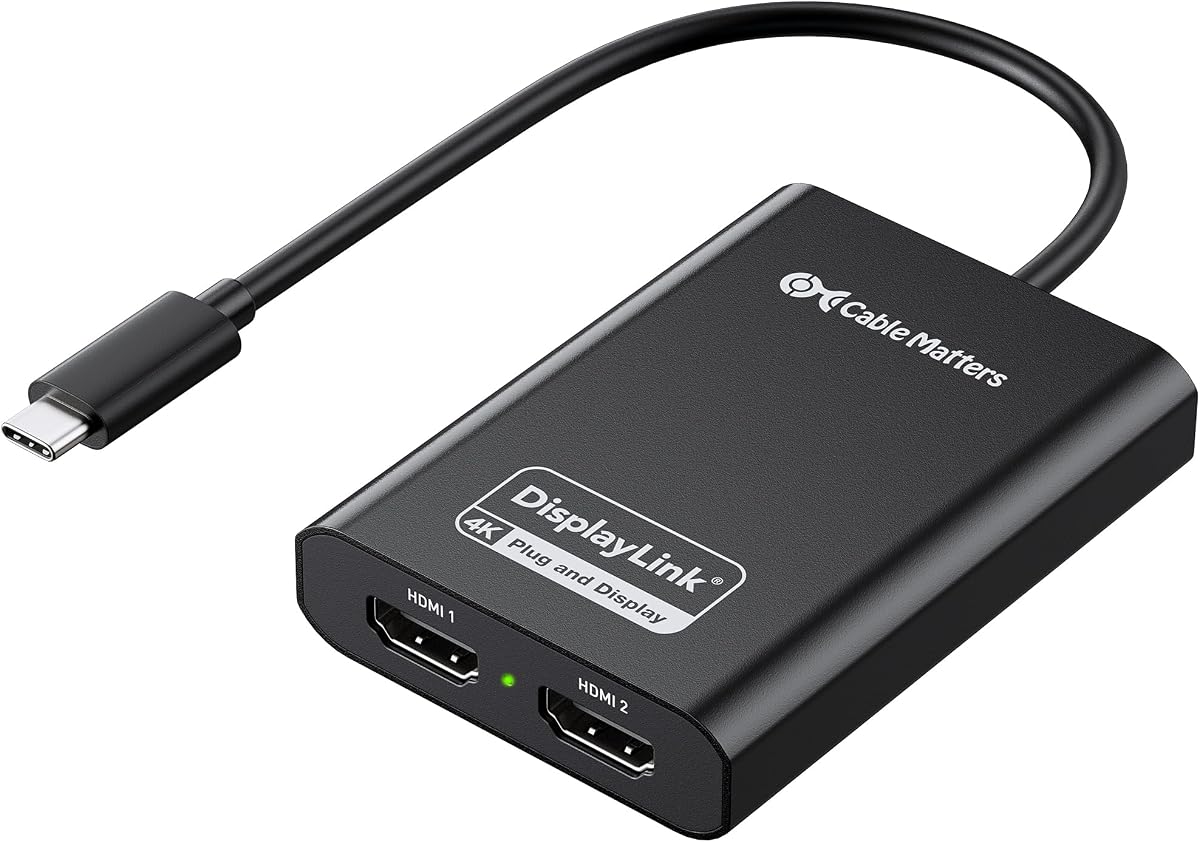
This Cable Matters adapter breaks single-display limits on Macs. It has a 4.0-star rating and offers dual Extended Displays. The standout quality is its wide compatibility.
We may earn a commission when you buy through this link, at no additional cost to you.
Its key strengths include turning one port into two HDMI outputs. The aluminum housing dissipates heat effectively. This is great for everyday use.
Trade-offs include driver needs and heat buildup. These are acceptable given the reliability. It suits creative workflows.
Users needing true multitasking should buy this. It is the final recommendation for macOS expansion.
Enjoy two extended 4K 60Hz HDMI monitors on macOS.
Crafted with a premium aluminum alloy enclosure.
We may earn a commission when you buy through this link, at no additional cost to you.
This Sonnet adapter connects two 4K displays efficiently. It holds a 4.4-star rating and supports 1080p at 144Hz. The standout quality is its refresh rate flexibility.
We may earn a commission when you buy through this link, at no additional cost to you.
Its key strengths include connection to Thunderbolt ports. It expands onscreen work area. This is perfect for M1 notebooks.
Trade-offs include driver requirements and HDCP restrictions. These are acceptable for general use. It fits well for M1 users.
M1 MacBook users should buy this. It is the final recommendation for expanding work area.
Supports 1080P and other lower resolution displays at 60Hz.
Perfect for M1 or M2 Mac Notebooks.
We may earn a commission when you buy through this link, at no additional cost to you.
Selecting the right adapter requires evaluating several critical factors.
Check if the adapter supports your operating system. Some require specific drivers for macOS or Windows.
Verify compatibility with your laptops ports and chip generation.
Ensure the adapter supports the resolution and Hz your monitors need.
Look for 4K@60Hz for smooth visuals and productivity.
Confirm the output type matches your monitors HDMI or DisplayPort.
Use correct adapters if ports do not match directly.
Look for PD charging if your laptop needs power during use.
This keeps your device charged while using external screens.
Check for extra USB or Ethernet ports.
These allow connecting peripherals and network cables easily.
Most Displaylink adapters need software installation.
Ensure you are comfortable installing drivers for setup.
Note that HDCP is usually not supported.
Avoid these if streaming encrypted video is a priority.
Choose durable materials like aluminum for better heat dissipation.
Solid build ensures reliable performance over time.
Start by downloading the latest Displaylink driver from the official site.
Connect the adapter to a USB-C or USB-A port on your computer.
Connect HDMI or DisplayPort cables to your external monitors securely.
Yes, most Displaylink adapters require driver installation. Download the software before connecting the device for best performance.
Yes, many adapters support M1 Macs with driver installation. Check product details for specific macOS compatibility.
No, Displaylink adapters usually do not support HDCP. Netflix playback will not work on connected displays.
Some adapters have PD ports for charging. Choose models with 100W support to power your device.
Most adapters do not officially support Linux. Windows and macOS are the primary supported operating systems.
Not recommended for gaming due to latency. They are designed for office productivity and multitasking.
You will need HDMI or DisplayPort cables. They are usually not included with the adapter package.
Top picks include Plugable and ACASIS adapters for their reliability and performance.
Prioritize compatibility and power delivery when selecting your ideal adapter.
Always check current prices and specs on the retailer site before buying.