
Hearvo USB 3.0 HDMI KVM Switch for 2 Computers 1 Monitor, 4K@60Hz, S7232H
4.0Editor score
Supports 4K@60Hz output
Includes four USB 3.0 ports
Plug and play with no drivers
This guide compares the top ten KVM switches for multi-monitor setups, gaming, and office work to help you choose the right switch for your needs.
Choosing the right KVM switch can transform your workspace by allowing seamless control over multiple computers with a single set of peripherals. Whether you are a content creator managing dual rigs or an IT professional managing test environments, a reliable switch saves time and reduces cable clutter significantly.
We evaluated ten top-rated models based on video resolution support, USB compatibility, switching mechanisms, and overall build quality. Our analysis focuses on real-world usability, ensuring that each recommendation meets the demands of modern high-performance computing and multi-monitor configurations found in professional settings.
Each entry in this list provides detailed insights into performance capabilities, connectivity options, and unique features that set them apart. Please note that product availability and pricing may fluctuate over time, so verify current details before making your final purchase decision to ensure you get the best value available.
4.0Editor score

3.9Editor score

4.5Editor score
The following table offers a side-by-side comparison of the ten featured KVM switches, highlighting key specifications such as video resolution, port types, and unique features to help you quickly identify the model that best fits your specific hardware requirements and workflow needs.




This UGREEN KVM switch stands out as a powerful solution for users needing to manage three monitors across two computers. It supports up to 8K@60Hz resolution, making it suitable for high-performance workstations where visual fidelity is critical.
We may earn a commission when you buy through this link, at no additional cost to you.
The switch features two DisplayPort 1.4 ports and one HDMI 2.1 port, allowing versatile connectivity for modern graphics cards. It includes HDR10+ and VRR support, ensuring smooth visuals without tearing during demanding tasks like gaming or video editing.
While highly capable, users must ensure their computers support triple-monitor output to utilize all displays. Additionally, the lack of hotkey switching means you rely on physical buttons or a desktop controller, which may not suit those who prefer keyboard shortcuts.
For professionals managing complex multi-monitor environments, this switch offers robust performance and future-proof resolution capabilities that few competitors can match at this price point.
The switch handles 8K@60Hz and 4K@240Hz, providing crystal-clear visuals for detailed design work or immersive gaming setups.
Use the included desktop controller to place the switch outside your work area, keeping your desk organized while maintaining quick access.
We may earn a commission when you buy through this link, at no additional cost to you.
The Hearvo KVM switch offers an accessible entry point for users needing basic dual-computer control. It supports 4K@60Hz resolution, ensuring sharp visuals without breaking the budget. It includes four USB ports for comprehensive peripheral sharing.
We may earn a commission when you buy through this link, at no additional cost to you.
Its adaptive EDID technology ensures stable image transmission by automatically optimizing display settings. This feature prevents common issues like screen flickering or resolution mismatches when switching between different computers or monitors.
However, this model is limited to one monitor, which may restrict users needing multi-screen setups. Also, it relies on USB power rather than an external adapter, which might limit stability for high-power USB devices like external hard drives.
For home offices or students needing a reliable and cost-effective solution for a single monitor setup, this switch provides excellent value and straightforward functionality.
The mix of USB-A and USB-C ports accommodates a wide range of modern peripherals without needing additional adapters.
The included wired remote allows you to place the switch away from your desk, reducing clutter while keeping controls accessible.
We may earn a commission when you buy through this link, at no additional cost to you.
This Displayport KVM switch is ideal for users prioritizing high refresh rates for gaming or smooth scrolling. It supports up to 4K@144Hz, delivering fluid visuals across dual monitors while maintaining compatibility with DP 1.2 standards.
We may earn a commission when you buy through this link, at no additional cost to you.
The switch includes four USB 3.0 ports for fast data transfer, enabling seamless sharing of keyboards, mice, and storage devices. An external power adapter ensures stable performance even when multiple high-power peripherals are connected simultaneously.
Users should note that DP cables are not included in the package, which adds to the initial setup cost. Additionally, the specific requirement for two DP ports per computer may limit compatibility with certain laptops or older desktop configurations.
For gamers and creative professionals needing high refresh rates on dual screens, this switch delivers the performance required for demanding visual workloads.
The 144Hz support ensures responsive visuals that reduce motion blur during fast-paced gaming sessions.
Switch between mirror and extended modes to customize your workflow based on whether you need duplicated or separate screens.
We may earn a commission when you buy through this link, at no additional cost to you.
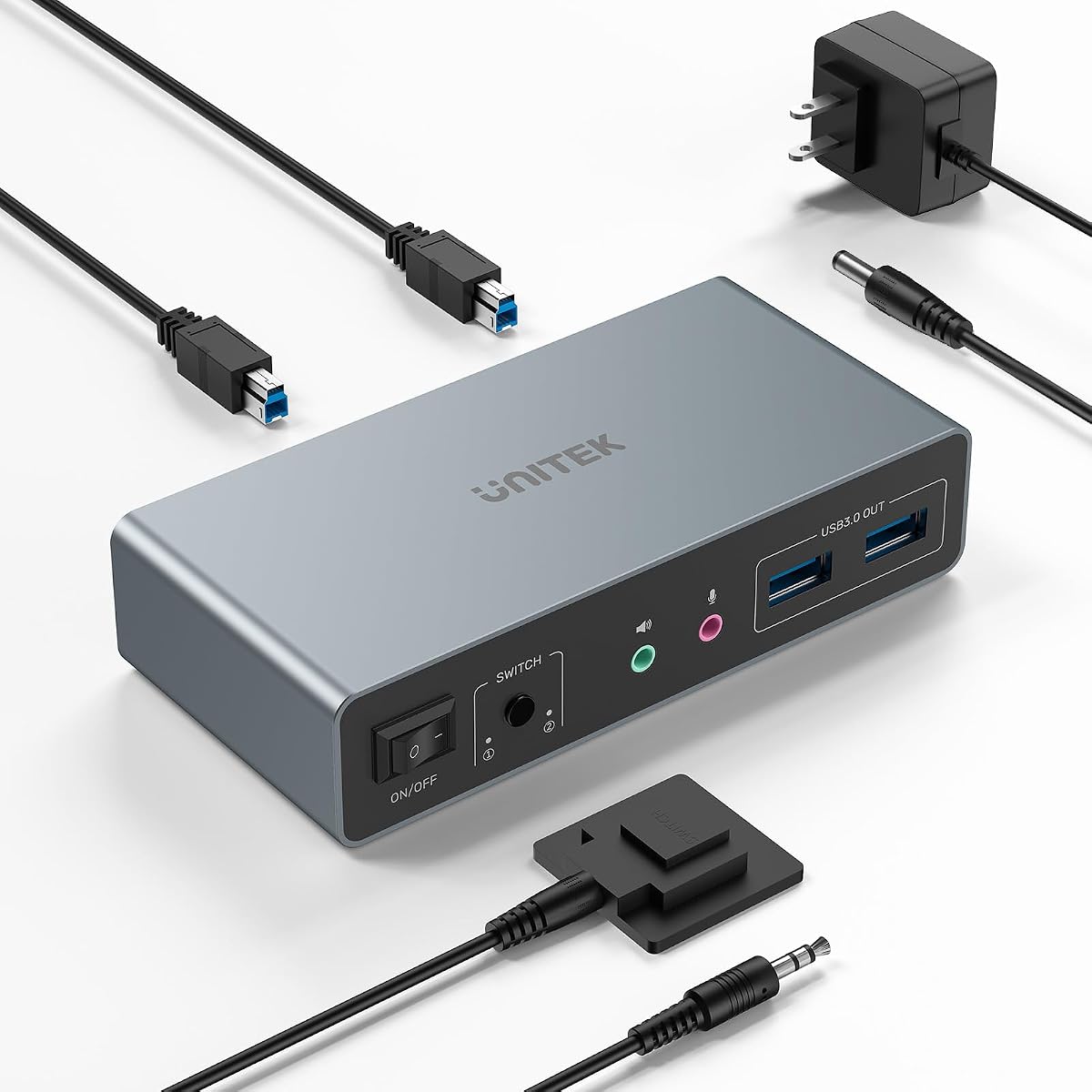
The Unitek KVM switch offers a flexible hybrid design supporting both HDMI and DisplayPort inputs for dual monitors. This versatility makes it a strong choice for mixed hardware environments where different port types are prevalent.
We may earn a commission when you buy through this link, at no additional cost to you.
It includes dedicated mic and headset ports, enhancing usability for communication-heavy tasks like calls or streaming. The switch supports up to 4K@60Hz and maintains compatibility with various operating systems including Windows and Linux.
A notable limitation is its incompatibility with laptops, restricting its use to desktop hosts only. Additionally, the need to connect all necessary cables for simultaneous outputs adds complexity to the initial setup process.
For desktop users needing dual monitor support with audio capabilities, this switch provides a balanced mix of features and reliability.
Integrated audio ports allow you to connect headphones directly without needing external splitters or adapters.
Four USB ports enable you to connect printers and hard drives alongside standard input devices efficiently.
We may earn a commission when you buy through this link, at no additional cost to you.
This HDMI KVM switch is designed for users needing three monitors across two computers using HDMI connections. It supports up to 4K@60Hz, offering high-quality visuals suitable for professional workflows requiring extensive screen real estate.
We may earn a commission when you buy through this link, at no additional cost to you.
An external power adapter ensures stable operation for connected peripherals like hard drives or webcams, which draw more power than a standard USB port can provide. The switch includes four USB 3.0 ports for efficient data sharing.
Users must ensure their computers support three-screen displays to fully utilize the switch. The lack of hotkey support means reliance on buttons or the included wired controller, which may be less convenient for power users.
For those seeking an HDMI-based solution for triple-monitor setups, this switch delivers the necessary connectivity and stability.
The external adapter prevents power drops that could disconnect USB devices during heavy usage or file transfers.
Switch between extended and duplicate modes to tailor your display setup for multitasking or presentation scenarios.
We may earn a commission when you buy through this link, at no additional cost to you.
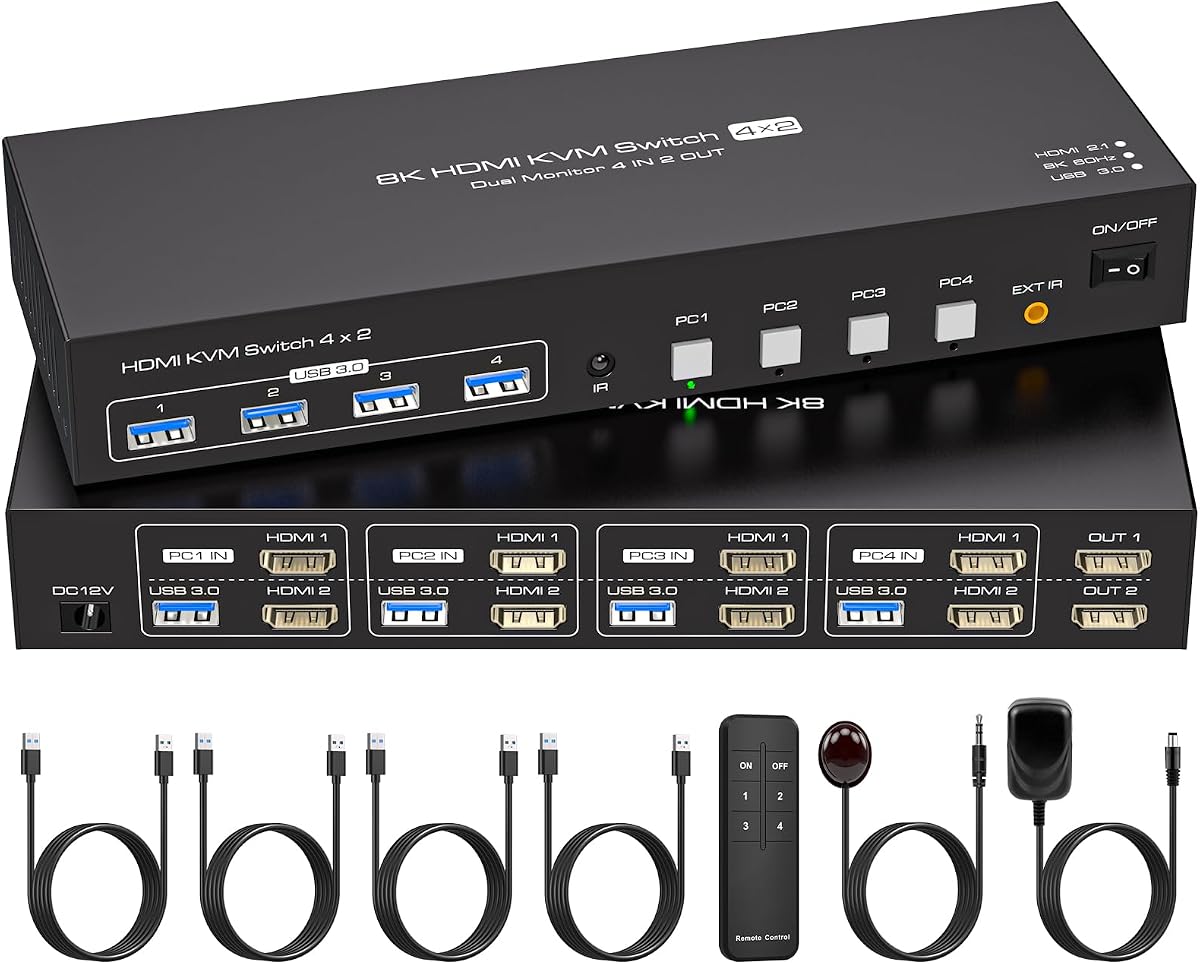
This KVM switch is unique for supporting four computers connected to two monitors, making it ideal for IT professionals managing multiple systems. It features EDID emulation, which prevents the screen from rearranging windows every time you switch computers.
We may earn a commission when you buy through this link, at no additional cost to you.
It supports ultra-high 8K resolution, ensuring compatibility with next-generation displays. The switch includes an infrared remote for convenient switching, which is particularly useful when the unit is placed in a hard-to-reach location.
However, each computer requires two HDMI ports, limiting compatibility with standard single-output systems. Additionally, the higher price reflects the advanced multi-computer capabilities which may not be necessary for casual users.
For environments requiring management of multiple systems on a few displays, this switch offers unparalleled flexibility and high-end performance.
EDID emulation keeps your desktop layout intact during switches, avoiding the hassle of repositioning windows.
Support for 8K ensures future-proofing for high-resolution video editing or monitoring tasks.
We may earn a commission when you buy through this link, at no additional cost to you.
The GL.iNet GL-RM10 redefines KVM functionality by offering secure remote access over Wi-Fi. This allows users to manage computers from anywhere on the network without physical connection. It supports 4K passthrough for high-fidelity visual control.
We may earn a commission when you buy through this link, at no additional cost to you.
Its built-in touchscreen simplifies setup and management, while Tailscale integration ensures secure, encrypted data transfer. This is ideal for remote IT support or accessing machines that are not in the same physical location.
However, it is significantly more expensive than traditional switches and relies on network stability. Users must ensure their Wi-Fi environment supports the required bandwidth for smooth video streaming.
For professionals needing to manage systems remotely with high security, this device provides a robust and versatile solution.
Use built-in encryption to safely access machines remotely without exposing them to public internet threats.
The touchscreen allows for quick configuration changes without needing to log into a remote computer first.
We may earn a commission when you buy through this link, at no additional cost to you.
This UGREEN switch offers reliable dual-monitor support with versatile HDMI connectivity. It handles 4K@60Hz and supports HDR10+, ensuring rich colors and sharp details for media consumption and gaming.
We may earn a commission when you buy through this link, at no additional cost to you.
The switch includes four USB 3.0 ports and a desktop controller, allowing convenient management of peripherals. Its plug-and-play design means no drivers are required, simplifying setup for most users.
While it lacks hotkey support, the physical controls are sufficient for standard use cases. Note that HDMI cable length should stay within three meters to ensure signal stability.
For general users needing a dependable dual-monitor HDMI switch, this model balances performance and ease of use effectively.
HDR support ensures movies and games look vibrant with deeper contrasts and brighter highlights.
USB ports let you share printers and storage between computers easily without extra hardware.
We may earn a commission when you buy through this link, at no additional cost to you.
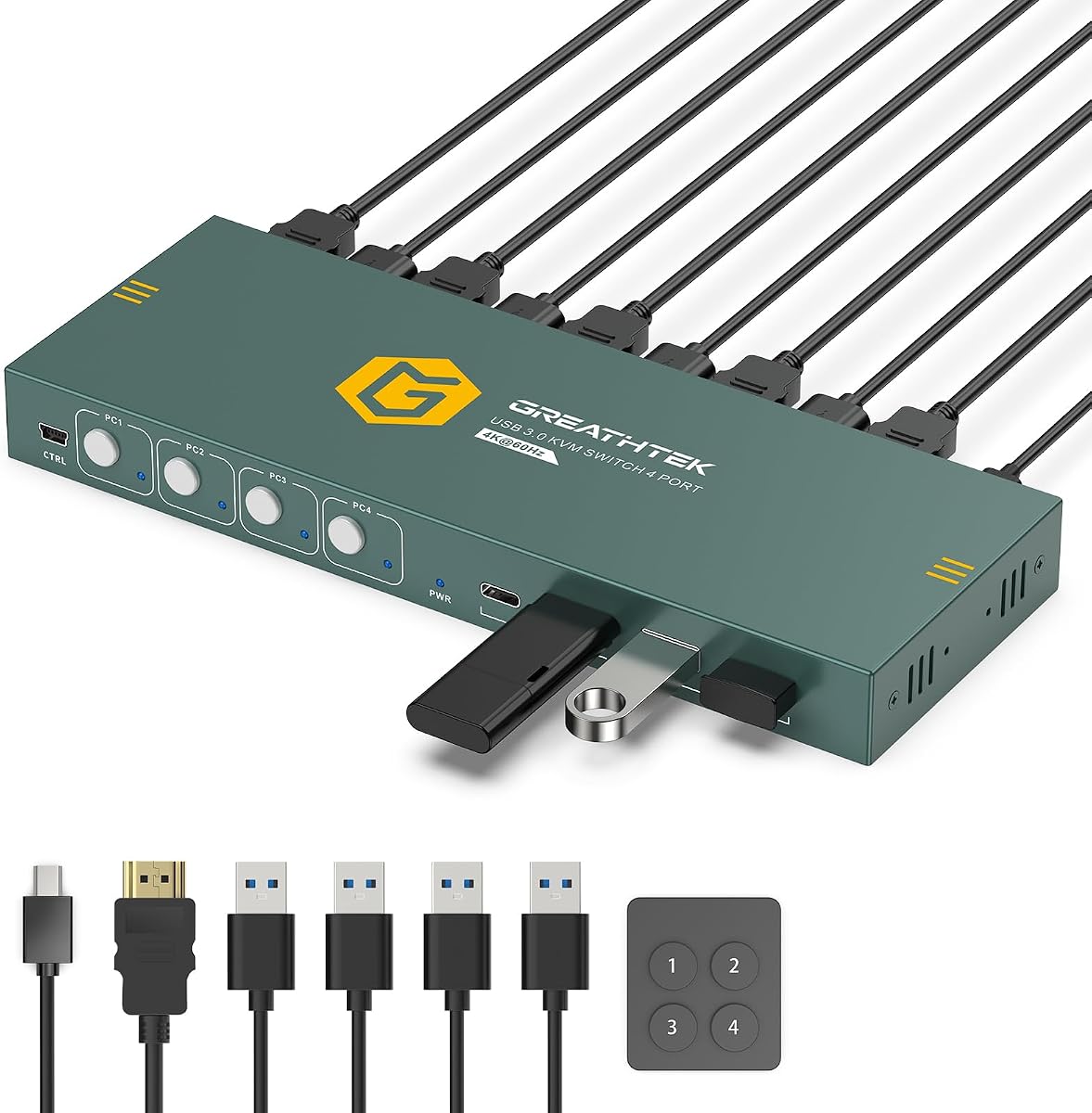
Designed for users managing multiple systems on a single display, this switch supports four computers with 4K@60Hz clarity. It includes four USB ports, allowing keyboard and mouse sharing across all connected PCs.
We may earn a commission when you buy through this link, at no additional cost to you.
The unit includes an external power cable and mounting brackets for under-desk installation. A wired remote with numbered buttons offers quick access to specific computers, streamlining workflow.
Its high rating reflects reliability in multi-PC environments. However, users needing dual monitors will need to look at other models in this guide that support expanded display configurations.
For testers or admins managing several machines on one screen, this switch offers a simple and efficient solution.
Numbered buttons on the remote make switching between specific machines fast without hunting through menus.
Mounting brackets allow you to hide the device under a desk, keeping your workspace clean and organized.
We may earn a commission when you buy through this link, at no additional cost to you.
This compact HDMI switch is a straightforward choice for basic dual-computer setups. It supports 4K@60Hz and does not require an external power adapter, relying on USB power for operation.
We may earn a commission when you buy through this link, at no additional cost to you.
The included wired controller lets you keep the switch out of sight while maintaining easy access. It works well for sharing keyboards and mice between standard Windows or Linux systems.
Note that USB ports are limited to 2.0 speeds which may slow large file transfers. Also, compatibility with Mac devices may be limited due to port or driver specifics.
For users needing a simple and inexpensive way to share one monitor and basic peripherals, this switch is an effective choice.
No drivers or extra cables are required to get started, reducing setup time significantly.
The compact design fits easily into tight spaces, making it ideal for small desks.
We may earn a commission when you buy through this link, at no additional cost to you.
Choosing the right KVM switch depends on your specific hardware configuration and workflow needs. Consider these key factors to ensure compatibility and performance.
Determine how many computers you need to connect and how many monitors you want to control. Some switches support two computers with one monitor, while others allow dual or triple monitor setups or even four computers.
Check whether your computers use HDMI, DisplayPort, or USB-C. Ensure the switch supports the resolution and refresh rate you need, such as 4K@60Hz or 8K@60Hz for high-end displays.
Verify the number and type of USB ports on the switch. USB 3.0 ports provide faster data transfer for peripherals like external drives, while USB 2.0 may be sufficient for keyboards and mice.
Consider how you want to switch between computers. Options include physical buttons, wired or wireless remotes, and hotkeys. Some models do not support hotkeys, which may affect usability.
Some KVM switches require an external power adapter to handle multiple USB devices reliably. Others draw power from USB ports, which may limit the devices you can connect simultaneously.
Ensure the switch supports your operating system, whether Windows, Mac, or Linux. Most switches are plug-and-play but some may have limitations with specific OS versions.
EDID emulation helps maintain display settings when switching computers, preventing screen resizing or window rearrangement. This feature is valuable for maintaining workflow consistency.
If you need to manage computers from a distance, look for switches with remote access capabilities over Wi-Fi or network connections. These typically offer secure and flexible management options.
To set up your KVM switch, connect each computer to the switch using HDMI or DisplayPort cables along with USB cables for peripherals. Plug the switch into a power source if required, and connect your keyboard, mouse, and monitor to the output ports.
Switch between computers by pressing the physical button on the unit or using the included remote control. Some models allow you to customize switching modes or enable automatic detection for smoother transitions.
To ensure long-term reliability, avoid bending cables sharply and keep the unit in a well-ventilated area. Regularly check connections to ensure stable performance and update your computer drivers if compatibility issues arise.
A KVM switch allows you to control multiple computers using a single keyboard, monitor, and mouse setup. This reduces cable clutter and saves desk space by eliminating the need for separate peripherals for each computer.
Most KVM switches are compatible with Mac systems provided the necessary ports like HDMI or USB-C are available. However, some budget models may have limited support, so checking compatibility before purchasing is essential.
Yes, if the switch supports the high refresh rates and resolutions your gaming monitor requires. Look for models supporting at least 4K@60Hz or higher to avoid performance issues during gameplay.
Some switches include HDMI or USB cables in the package, while others do not. Verify what is included before purchasing to avoid needing to buy additional cables separately.
Flickering may result from incompatible resolutions, poor cable quality, or insufficient power. Ensure all cables support the required resolution and that the switch has adequate power to handle your setup.
Many KVM switches support hotkey shortcuts such as pressing a specific key combination to switch. However, some models rely solely on physical buttons or remotes, so check the product specifications before buying.
The number depends on the switch's USB port count, typically ranging from two to four ports. Ensure you have enough ports for your keyboard, mouse, and any additional peripherals like printers.
Yes, HDMI switches are widely compatible but may have lower refresh rate support compared to DisplayPort switches which often support higher resolutions and refresh rates for advanced displays.
Choosing the right KVM switch depends on your specific setup needs. The UGREEN 8K switch leads for high-resolution multi-monitor setups, while the Hearvo switch offers an affordable option for basic users.
Consider factors like resolution support, number of ports, and switching methods to find the best match for your workflow. Advanced users may benefit from switches with EDID emulation or remote access features.
Remember that product availability and pricing can change. Check current listings before purchasing to ensure you get the best value and confirm compatibility with your existing hardware.